
Product docs and API reference are now on Akamai TechDocs.
Search product docs.
Search for “” in product docs.
Search API reference.
Search for “” in API reference.
Search Results
results matching
results
No Results
Filters
Clearing Cache and Cookies in a Browser
Traducciones al EspañolEstamos traduciendo nuestros guías y tutoriales al Español. Es posible que usted esté viendo una traducción generada automáticamente. Estamos trabajando con traductores profesionales para verificar las traducciones de nuestro sitio web. Este proyecto es un trabajo en curso.
A browser’s cache improves website loading performance by reducing the data processing and fetching. When a sizeable amount of cached content is stored, it slows down the system and reduces the performance of the application.
When you clear the cache the performance of the system and application is enhanced.
Clear the Cache in Chrome
Keyboard Shortcut
On Windows or Linux
While in the browser press Ctrl + Shift + Delete keys.
On MacOS
While in the browser press command + shift + delete keys.
In the Browser
Click the Chrome menu and select Delete Browsing Data….
In the Delete browsing data window.
Select the following:
Browsing history
Download history
Cookies and other site data
Cached images and files
Choose the period of time for which you want to clear cached information. To clear your entire cache, select All time from the More timerange drop-down menu.
- Click the Delete data button.
- Close all windows in the browser and re-open the browser.
Disable Cache with Developer Tools
Chrome has a Developer tools dashboard built in. Within this you have the ability to disable caching in a specific tab.
To open the Web Developer tools panel, click on the View menu, then click Developer, and Developer Tools.
The dashboard will open at the bottom of the screen.
Click the Network tab, and select the Disable Cache checkbox.



Reload the page. This will load the page with the cache disabled.

Incognito Browsing in Chrome
Chrome allows you to browse in Incognito Mode.
- This is a private browser window which allows you to surf the web without the browser saving your cookies or site history.
- However, it does not mean that your browsing is private to your network, ISP, or search engines.
- You must exit the browser window to clear the history, cookies, and data created during the session.
To create an Incognito window, click the File menu and select New Incognito Window.
- You can also open an Incognito window with the keyboard shortcut Ctrl + Shift + N (Windows and Linux) or command + shift + N (MacOS).
Clear the Cache in FireFox
Keyboard Shortcut
On Windows or Linux
While in the browser press Ctrl + Shift + Delete keys.
On MacOS
While in the browser press command + shift + delete keys.
In the Browser
- Click the Application Menu (three horizontal lines in the top-right corner) and select Settings.
- From the left sidebar, click on Privacy & Security.
- Scroll down to the Cookies and Site Data section and click the Clear browsing data… button.
- In the overlay window, locate the When: drop-down menu and select your desired timeframe; to clear your entire cache, select Everything.
- In the list below, ensure Cached Web Content is checked.
- Click the Clear button.
- Close all windows in the browser and re-open the browser.
Disable Cache with Web Developer Tools
Firefox has a Web Developer tools dashboard built in. Within this, you have the ability to disable caching in a specific tab.
To open the Web Developer tools panel, click on the Application Menu (three horizontal lines), hover over More tools, and select Web Developer Tools (or press F12).
The dashboard will open at the bottom or side of the screen.
Click the Network tab, and select the Disable Cache checkbox.
Reload the page. This will load the page with the cache disabled.
Private Browsing in Firefox
A private browser window can be opened in Firefox.
- Private browsing allows you to surf the web without saving cookies, site data, or browsing history.
- It does not mean you can mask your identity on the web or your activity online to your network or ISP.
- Data is cleared upon exiting the browser window.
To open a private browsing session, click the Application Menu (three horizontal lines) and select New Private Window.
- You can also open a private window with the keyboard shortcut Ctrl + Shift + P (Windows and Linux) or command + shift + P (macOS).
Clear the Cache in Safarihift** + P (MacOS).
Clear the Cache in Safari
From the Safari menu, select Clear History.
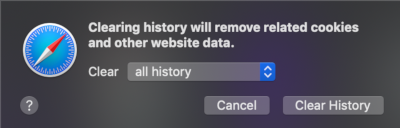
Select the desired time range option in the Clear drop-down menu.
To clear all the cache select all history, and then click Clear History.
Go to the Safari menu and click Quit Safari to exit the browser.
On MacOS, press command + Q to exit the browser completely.
Disable Cache with Developer Tools
Safari has a Developer tools dashboard built in, but you may need to enable it. Within this you have the ability to disable caching in a specific tab.
First, to enable it, click the Safari menu, Settings. Then in the Advanced tab, choose Show features for web developers.
Close the preference panel. The Develop menu should now appear on the menu bar.
To open the Developer tools panel, click on the Develop menu, then click Show Web Inspector.
The dashboard will open at the bottom of the screen.
Click the Network tab, and select the Disable Caches.
Reload the page. This will load the page with the cache disabled.
Private Browsing in Safari
A private browser window can be opened in Safari.
- Private browsing allows you to surf the web without saving cookies or browsing history.
- It does not mean you can mask your identity on the web or your activity online.
- Additionally, tabs in a private browser window are isolated from each other and private browsing windows can not be passed to other Apple devices via Handoff.
- Data is cleared upon exiting the browser window.
To open a private browsing session, click the File menu and select New Private Window.
- You can also open a private window with the keyboard shortcut Ctrl + Shift + N (Windows and Linux) or command + shift + N (MacOS).
Clear the Cache in Edge
Keyboard Shortcut
On Windows or Linux
While in the browser press Ctrl + Shift + Delete keys.
On MacOS
While in the browser press command + shift + delete keys.
In the Browser
- Click the Settings and more menu (three horizontal dots in the top-right corner) and select Settings.
- In the left-hand sidebar, click on Privacy, search, and services.
- Scroll down to the Clear browsing data section and click the Choose what to clear button next to Clear browsing data now.
- In the Time range drop-down menu, choose the period of time for which you want to clear cached information. To clear your entire cache, select All time.
- Select the checkboxes for the following:
- Browsing history
- Download history
- Cookies and other site data
- Cached images and files
- Click the Clear now button.
- Close all windows in the browser and re-open the browser.
Disable Cache with Developer Tools
Edge has a Developer tools dashboard built in. Within this, you have the ability to disable caching in a specific tab.
To open the Developer tools panel, click on the Settings and more menu (three dots), hover over More tools, and select Developer tools. Simply press F12 or Ctrl + Shift + I (Windows) and command + option + I in MacOS.
The dashboard will open at the side or bottom of the screen. You can change the location of this panel to your preference.
Click the Network tab, and select the Disable cache checkbox.
Reload the page. This will load the page with the cache disabled.
InPrivate Browsing in Edge
Edge allows you to browse in InPrivate Mode.
- This is a private browser window which allows you to surf the web without the browser saving your cookies, site data, or browsing history.
- However, it does not mean that your browsing is private to your network, ISP, or search engines.
- You must exit the browser window to clear the history, cookies, and data created during the session.
To create a new InPrivate window, click the Settings and more menu (three dots) and select New InPrivate window.
- You can also open an InPrivate window with the keyboard shortcut Ctrl + Shift + N (Windows and Linux) or command + shift + N (macOS).
This page was originally published on
